Transcription Review Workbench
Updated
BeginnerWhat you'll learn
~50 min- Ask an AI tool, in plan mode, for a review page that shows a register page beside an AI draft of it
- Read its plan for what matters to a transcription: every line compared, the draft kept as it was, and the checking done by you
- Compare every line of a draft with the page, and find a misread digit, a misread word for a person's part in the baptism, and a misread abbreviation
- Keep the text as written, the modern spelling and the translation in three separate places
- Mark a line as checked against the page, with your name and the date, while a character you cannot read stays marked [?], the sign for 'cannot be read'
The story, and what you will end up with
The family line in this course runs back to Sweden. One of its open questions is whether the Olof Engstrom of Kettle Ford, Wisconsin, was the Olof born in 1858 in Gråbacka village, Tallmora parish, in Hälsingland. That Olof’s baptism is entry N:o 9 on page 47 of the Tallmora baptism register, TRAINING-TM-BAPT-2. You have an image of the page: seven short lines of slanted handwriting, in Swedish, full of abbreviations. (Same Name, Same Person? takes the question up later.)
Someone has already run the page through an AI tool, and the draft it produced reads cleanly. Its summary says:
Olof, born 14 March 1858, baptized 18 March; father Dr. Hans Jonsson of Myrbo; mother Kerstin Olsdotter.
Fictional training example.
If you copied that into a family tree tonight, every name in it would go in as it stands. The page itself says something else on more than one line, and only a person comparing it line by line will see what.
By the end of this lesson you will have a small page on your own computer that shows the register page beside the AI draft, one line at a time, where you write your own reading of each line and mark each one as checked against the page. You build it by asking your AI tool in plain English, and then you do the checking yourself.
Before you start
First, if your AI tool is still open, leave it: type /exit and press Enter (if you use Antigravity, press Ctrl+D with nothing typed instead), and wait until you see the $ or % prompt. The next line goes there, in the terminal, not in the AI tool. It makes a folder for this lesson and goes into it:
mkdir -p ~/archive-playbook/03-transcription-review && cd ~/archive-playbook/03-transcription-reviewStart your AI tool with the start line you kept from the setup lesson, the one with approval prompts off. Then ask it to set the folder up:
Set this folder up so we can undo any change you make, download https://learn.intellimetrics.net/starters/history/03/baptism-page.svg and https://learn.intellimetrics.net/starters/history/03/ai-draft.json into a data folder, and save a checkpoint.Look for it saying three things: the folder is set up with Git (the program that saves snapshots, from setup), both files are saved in data/, and a first snapshot, your checkpoint, is saved. If it does not mention one of them, ask: “Did you save a checkpoint with both files in it?” If the download does not work, download baptism-page.svg and ai-draft.json in your browser, check where they went (the browser’s list of downloads shows the folder), and tell your AI tool, for example: “Both files are in my Downloads folder. Copy those two files into a data folder here, and save a checkpoint.” In Windows PowerShell or a desktop app, “my Downloads folder” works as is; only say “my Windows Downloads folder” if you use Ubuntu (WSL) on Windows, which keeps its own Downloads folder apart from Windows.
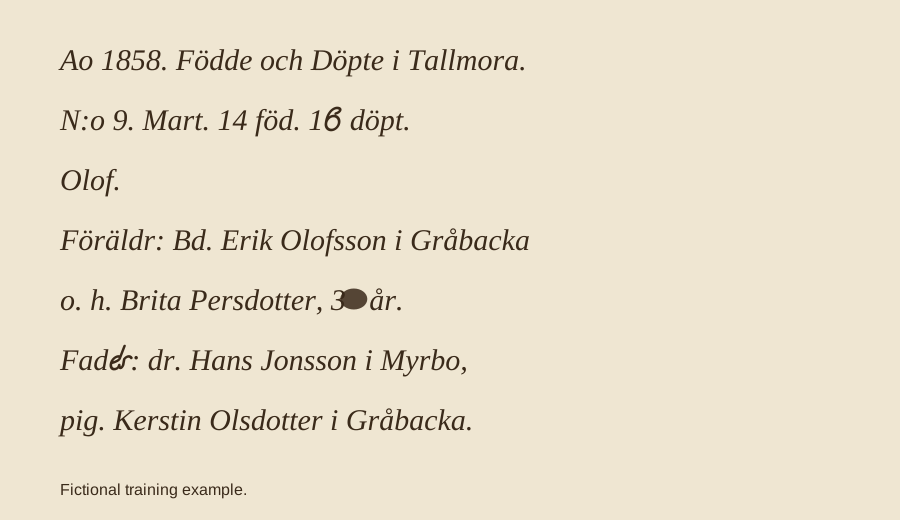
Everything in both files is fictional, made up for this course. The page is drawn, not a scan of a real register.
Open this box once, because it says what each code used further down stands for.
ℹWhat is in the two filesclick to expand
baptism-page.svg is the image of the register page: seven lines of handwriting and, at the foot, “Fictional training example.” Open it in your browser if you want to look at it now.
ai-draft.json is what an AI tool made of that page: a one-line summary, then each of the seven lines three ways. as_written is the line exactly as the page has it, abbreviations and all (people who transcribe call this the diplomatic transcription). normalized is the same line in modern Swedish spelling with the abbreviations written out. translation is the line in English. It also names the register, page and entry the page comes from. Here is a reference example of the JSON file your agent downloads and maintains (you do not type or edit this JSON yourself):
{ "page": {"file": "baptism-page.svg", "register": "Tallmora parish baptism register TRAINING-TM-BAPT-2", "page": "p. 47", "entry": "N:o 9", "note": "drawn practice page, not a scan"}, "draft_by": "an AI tool, reading the page image", "summary": "Olof, born 14 March 1858, baptized 18 March; father Dr. Hans Jonsson of Myrbo; mother Kerstin Olsdotter.", "lines": [ {"line": 1, "as_written": "Ao 1858. Födde och Döpte i Tallmora.", "normalized": "År 1858. Födda och döpta i Tallmora.", "translation": "Year 1858. Born and baptized in Tallmora."}, {"line": 2, "as_written": "N:o 9. Mart. 14 föd. 18 döpt.", "normalized": "Nr 9. Mars 14 född, 18 döpt.", "translation": "No. 9. March 14 born, 18 baptized."}, ... ]}Only the first two lines are shown here. The walkthrough below takes all seven, one at a time, beside the page.
Switch to plan mode
Your AI tool is already open. Switch to plan mode now: Shift+Tab until it says plan, or /plan (the keys for each tool). In plan mode it usually reads your file, asks its questions and shows you a plan before it builds anything; the order can vary.
The conversation
Each message below is an example. Say it your own way.
Say what you want
Say whose record it is, which files to use, and what you want to do with them:
I have a page from Olof's 1858 baptism record, data/baptism-page.svg, and an AI draft of it, data/ai-draft.json. Help me build a small page to check the draft line by line. Ask me what you need first.Your AI tool reads both files and comes back with questions. It may also tell you what it noticed: that the handwriting in the image is drawn as shapes, so the words cannot simply be copied out of the file as text, or that the draft’s summary does not agree with its own lines. It may even guess at a reading. A guess from your AI tool is one more draft, like the one in the file. The page decides, and you are the one who reads it.
Answer its questions
Answer each in a sentence. These are questions AI tools often ask, with one way to answer each. Yours may ask them in a different order or show a list of choices:
| If it asks | You might say |
|---|---|
| Is a page in your browser all right, or something else? | A browser page is fine. |
| Check only the text as written, or the spelling and translation too? | Check all three, kept separate. |
| Should it also make its own reading of the page, as a second opinion? | No. I’ll judge every line myself. |
| Should it remember your progress, and where should your review be saved? | Remember my progress and save my review to a new file; leave the draft alone. |
| Should it write a corrected summary at the end? | Not yet. |
| Is this for one page, or for other pages later? | Just this page for now. |
| How well do you read old Swedish handwriting? Should it add hints for the abbreviations? | Not at all. No hints, please; I’ll compare the letter shapes with the page myself. |
Turn down the hints and the second reading: the readings on the review page are yours to make.
If it asks several questions at once, answer the ones that matter to your research in a sentence, and for the rest say that its suggestions are fine. If it asks something not listed here, answer it the same way, in a sentence.
Read the plan
Next it shows you a plan: what it will build and how it will check it. Read it for six things:
- Every line of the page can be put beside the draft’s reading of it, all seven, so each one is compared with the page itself and not with the summary.
- The AI draft stays as it was, and stays in view. Your own readings are kept apart from it, so you can always see what the AI proposed.
- Each line keeps three texts apart: the line as written, the line in modern spelling, and the line in English. One never replaces another.
- A line counts as checked only when you mark it, with your name and the date. Nothing marks itself, and the review page never says which reading is right.
- A
[?]stays where you put it, even on a line you have marked checked, and in whatever it saves.[?]stands for a character or word you cannot read. - Your two files are read and left as they are.
A first plan often leaves out how a line gets marked checked, or what happens to a [?]. Say so in a sentence, in your own words, for example:
Let me mark each line as checked, with my name and the date, and never remove a [?] I type.When the plan has all six, approve it: if your AI tool offers a choice to go ahead, pick it; otherwise say “Yes, go ahead and build it.” In Codex, press Shift+Tab first to leave plan mode. In Copilot, saying it brings up a choice to go ahead; pick that. Let it build. It may test what it built and tell you how to open it. When it has finished, ask it: “Did you install anything, and where?” Nothing, or something inside this lesson’s folder, is fine for these lessons. If it names anywhere else on your computer, ask it what that is for, and to remove it if you do not want it there.
Look at what it built
Ask it to open the review page:
Open the review page in my browser.Your AI tool may open the page straight from its file, or start a small program on this computer that serves the page at a local address, one ending in a number, such as http://127.0.0.1:8000/ (127.0.0.1 is an address that means this computer); either is fine. If it gives you an address without opening it, copy the address into your browser’s address bar and press Enter. If it says the address is already in use, say: “Something else is using that address. Don’t stop it. Use a different address for my page.” Leave the program running while you work; when you are done, ask your AI tool to stop it. If your AI tool does not take a message after opening the page, wait a minute. If it still does not, close the terminal window, open a new one, type this lesson’s folder line again, start your tool, and say: “Start the page again so it keeps running while we talk.” The page and your saved work are files in the folder, so nothing is lost. Your review page will be laid out in its own way.
Before you change anything, check two things: the register page is in view with all seven lines, and all seven lines of the draft show as not yet checked.
Check the seven lines yourself
Keep the register page in view, and enlarge the line you are on if the review page lets you. For each line you write your own reading three ways: as written, in modern spelling, and in English. If the review page has no place for all three, tell your AI tool: “Give me a place on each line for my own reading as written, in modern spelling and in English.”
- Read the summary, then put it aside. It says Olof was baptized on 18 March, that his father was “Dr. Hans Jonsson of Myrbo”, and that his mother was Kerstin Olsdotter. It is the AI’s reading of lines nobody has checked yet. Nothing in it counts until the lines have been compared with the page.
- Lines 1 and 3. The page says
Ao 1858. Födde och Döpte i Tallmora.andOlof., and so does the draft. Look closely at line 1 anyway: the two 8s in “1858” have closed top loops, and the capital D of “Döpte” has a straight back. Both help later. Mark both lines checked. - Line 2, a digit. The draft reads
N:o 9. Mart. 14 föd. 18 döpt., baptized on the 18th. Look on the page at the number just beforedöpt.Its last digit has a closed loop at the bottom and a top stroke that curls over to the right and stops short, so the top stays open. A hurried reader can take it for an 8. Compare the 8s of “1858” on line 1: their tops are closed. The page says16. Write your reading of the line asN:o 9. Mart. 14 föd. 16 döpt., thenNr 9. Mars 14 född, 16 döpt.andNo. 9. March 14 born, 16 baptized., and mark it checked. If you still cannot tell it from an 8, write1[?]instead. - Line 4, the parents.
Föräldr: Bd. Erik Olofsson i Gråbacka. On this pageFöräldr:is short for föräldrar, parents, andBd.for bonde, farmer. The draft matches the page. Mark it checked. - Line 6, two mistakes in one line. The draft reads
Fader: Dr. Hans Jonsson i Myrbo,, “Father: Doctor Hans Jonsson of Myrbo”. Look at the first word. Its fourth letter has a small bowl like an e, and the stroke leaving it hooks up like an r, so a quick glance reads “Fader”. But a tall stroke rises from that bowl, as high as the d before it, and an e has no such stroke. It is a second d: the word isFadd:, short for faddrar, godparents or baptism witnesses. Then the next word: the draft has a capital D, a doctor. Compare the capital D of “Döpte” on line 1, with its straight back. This d has none; it is lower case.dr.is short for dräng, farmhand. WriteFadd: dr. Hans Jonsson i Myrbo,, thenFaddrar: drängen Hans Jonsson i Myrbo,andBaptism witnesses: the farmhand Hans Jonsson of Myrbo,, and mark it checked. - Line 7.
pig. Kerstin Olsdotter i Gråbacka.matches;pig.is short for piga, maid. This line carries on the list of witnesses that line 6 began afterFadd:, so she is the second witness, not the mother. Mark it checked. - Line 5 last. The draft reads
o. h. Brita Persdotter, 31 år., aged 31. Look at the age on the page. A dark ink blot sits where the second digit would be. Only the 3 can be read. Keep reading before you decide this one.
Notice what the blot leaves you
There are two hasty moves on line 5. One is to keep the AI’s 31, because it reads smoothly. The other is to work out from another record that Brita was probably 31 and type that in. The page cannot tell you either, and nothing under the blot can be seen at any size.
So write the line as o. h. Brita Persdotter, 3[?] år., with 3[?] in the modern spelling and the English too, and mark it checked with your name and the date. You did compare every character of this line with the page. One of them cannot be read, and saying so is the finished result.
If the review page has a button to save your review, press it now. If saving downloads a file, find its name in the browser’s list of downloads and tell your AI tool, for example: “My saved review, review.json, is in my Downloads folder. Move that one file into the data folder here.” Then ask:
Show me what my saved review says for line 5, exactly as stored.The stored line should say checked, with your name and date, and still hold 3[?].
An AI reading is a proposal until a person compares every line with the image; checking a line does not force illegible characters to become certain.
Now read the summary again. Every claim in it that came from line 2 or line 6 was wrong: the baptism was on the 16th, the parents are Erik Olofsson and Brita Persdotter on lines 4 and 5, and Hans and Kerstin stood witness.
Check it for these
- All seven lines are marked checked, each with your name and the date.
- On line 2 the draft still shows
18 döptbeside your reading,N:o 9. Mart. 14 föd. 16 döpt. - Line 6 keeps
Fadd: dr. Hans Jonsson i Myrbo,as written, apart from its translation,Baptism witnesses: the farmhand Hans Jonsson of Myrbo,. - Line 5 is marked checked, with your name and the date, while it still says
3[?], and the[?]is still there after you reload the page and in your saved review. - When you ask “Have my two files changed since the checkpoint?”, it compares them with the checkpoint and says no.
If something on the list is not true, tell your AI tool in a sentence what you see and what you expected, for example: “When I mark line 5 checked, the [?] disappears. Keep it exactly as I typed it.”
One real run
Here is what one AI tool answered when asked to show line 5 of a saved review, built with Claude Code on 10 November 2026. That review page stored, for each of the three texts, a verdict and a correction, so the reader’s own reading sits in the correction. Yours will be stored in its own way; check it against the list above, not against this one.
{ "line": 5, "as_written": { "verdict": "wrong", "correction": "o. h. Brita Persdotter, 3[?] år.", "note": "" }, "normalized": { "verdict": "wrong", "correction": "och hustrun Brita Persdotter, 3[?] år.", "note": "" }, "translation": { "verdict": "wrong", "correction": "and his wife Brita Persdotter, 3[?] years.", "note": "" }, "checked": { "by": "A. Researcher", "date": "2026-11-10" }}Fictional training example.
The example above marks the AI’s 31 as “wrong”. Read that as “not what the page shows”: the honest reading has a [?] where the AI was sure.
How real archives differ
The register page in this lesson was made for this course, abbreviations and all; it is not a real register. Real registers and archives have their own forms and rules:
- The Swedish National Archives (Riksarkivet) describes what the birth and baptism books record, in Swedish: “Där anges föräldrarnas namn … Dessutom anges namn på faddrar eller dopvittnen” (in English: the parents’ names are given … and also the names of godparents or baptism witnesses) (Riksarkivet, kyrkoarkiv). Those are the archive’s own words, and they are why
Föräldr:reads as parents andFadd:as godparents or baptism witnesses. The other English renderings in this lesson (Aoyear,föd.anddöptborn and baptized,Mart.March,Bd.farmer,o. h.and his wife,dr.farmhand,pig.maid) were written for this course. On a real page, look for the archive’s own guidance. - Riksarkivet publishes Swedish parish registers in its Digital Research Room (sok.riksarkivet.se/en/digitala-forskarsalen). Its questions and answers say that material older than 110 years is shown without an account, and material between 70 and 110 years old needs a free account (questions and answers).
- Transcription guides do not all use
[?]the same way. In this lesson3[?]means a 3 followed by a digit that cannot be read. When you share a transcription, say what your marks mean.
Keep going
Small changes do not need plan mode. Say each in a sentence:
- “Show me how many lines are still not checked.”
- “If I change a line after I checked it, mark it not checked again.”
- “Give me a plain-text copy of my review I can print, with every [?] kept.”
- “Save a checkpoint.” Your AI tool saves a snapshot you can return to (people who use Git call this a commit).
When you have a real transcription to check, use the finished review page. It runs on your real records by itself, with your AI tool closed. Do these steps in order; the first two happen now, while this folder still holds only practice data:
- Go through the data check, the questions in setup about what the material is, who decides how it is used, and which AI tool would see it. Go on only if it allows this use.
- While this folder still holds only the practice files, ask your AI tool: “How do I open the review page myself on a page and a draft in another folder, and save my review there too?”
- Write down what it tells you.
- Ask your AI tool to stop the page’s program, then leave the tool: type
/exitand press Enter (if you use Antigravity, press Ctrl+D with nothing typed instead). - Keep your real files in a folder of their own, outside this course folder, and do what you wrote down. Your review is saved beside your real files, not in the course folder.
A page of your own, read by your AI tool, as the draft. This is the one place in the track where you may ask your own AI tool to read a record. Do it only with a page that is in the public domain, and only after your data check allows that use; never with a page about a living person, a page from a subscription site, or a family document. In a new folder, ask your AI tool to read the page into a draft shaped like ai-draft.json, then to open the review page on that page and draft; if you do not read the page’s language, check only the text as written.
Places to look for a practice page. Each gives its own rights note, and not every page on them is in the public domain: choose a single item marked as public domain, and read the site’s terms on using it with an online service before you send it to your AI tool.
- The US National Archives Catalog (catalog.archives.gov). The National Archives says: “The vast majority of the digital images in the National Archives Catalog are in the public domain. Therefore, no written permission is required to use them. We would appreciate your crediting the National Archives and Records Administration as the original source.” Check each record’s “Use Restriction(s)” field (National Archives FAQs).
- The Library of Congress, Free to Use and Reuse (loc.gov/free-to-use): “More than 100 sets of rights-free images are ready for you to explore and add to your own projects.” For its Prints and Photographs collections the Library adds that “it is the researcher’s obligation to determine and satisfy copyright or other use restrictions when publishing or otherwise distributing materials found in the Library’s collections” (rights research guide).
- Riksarkivet’s Digital Research Room (sok.riksarkivet.se/en/digitala-forskarsalen), where Swedish parish registers like the one this lesson imitates are published. Its terms say, in Swedish: “Riksarkivets digitaliserade arkivhandlingar är till den övervägande majoriteten helt fria för användning och återanvändning” (the overwhelming majority of its digitized records are entirely free to use and reuse), and “Endast en mindre del av de fotografier och konstnärliga verk som är tillgängliga i den digitala forskarsalen är skyddade enligt lagen om upphovsrätt” (only a small part of the photographs and artworks there are protected by copyright) (terms of use). For this round, choose a page more than 110 years old, the kind shown without an account; its age does not show that no one named on it is living, so the rule above still applies.
- Wikimedia Commons (Commons licensing) accepts media “that are explicitly freely licensed, or” “that are in the public domain in at least the United States and in the source country of the work.” Commons also holds freely licensed files that are not public domain; for this round, use only a file whose licence line says public domain.
Try another case
Before the quiz, write two or three sentences for yourself. A cousin sends you an AI transcription of a marriage entry. It reads smoothly, and it says the bride’s father was a merchant. You have the image too. What would you check before you put “merchant” in your notes, and what would you write if one word on the image is too faded to read?
A good answer compares that line, and every other line, with the image before trusting any of it; keeps the word as written apart from what it means; and writes a mark such as [?] for the faded word instead of the AI’s guess.
Key takeaways
- Ask briefly, and let your AI tool ask back. Say whose record it is, which files to use, and what you want to do with them; its questions fill in the rest.
- Read the plan for the research, not the code: every line beside the page, the draft kept as it was, and checking done by you, with your name and date.
- An AI draft that reads smoothly can still be wrong in the words that matter most: here, who the parents were. A fluent sentence is not a reading.
- Compare every line, not only the lines that look doubtful: the role-word error sat in a line that read naturally.
- Keep three texts apart: the line as written, its modern spelling and its translation;
dr.staysdr.in the as-written text, whatever the translation says. - Uncertainty is part of the result:
3[?]on a checked line is a finished, honest transcription, not an unfinished one.
You are checking an AI draft of a different register entry. The draft says the bride was '24 years'. On the image the second digit sits under a fold in the paper, and the groom's own entry elsewhere suggests she was probably 24. You have compared every other character of the line with the image. What do you record?
What’s next
Your checked line 6 now says that Hans Jonsson and Kerstin Olsdotter stood witness, and that the parents are Erik and Brita. Next you turn readings like that into numbered claims: the Claim Ledger ties each claim to an exact quotation from a transcription, and keeps every correction as a new entry instead of overwriting the old one.